GST/HST worksheet
If your business is registered for GST/HST, your return asks what you sold, how much tax you collected and how much tax you paid on business costs (input tax credits, ITC). SoloBook already holds every sale and every cost, so it can lay these figures out as a worksheet: each figure opens to the rows behind it, and a list says what is still missing. You or your accountant file the return.
The worksheet is not tax advice. It does not tell you what you owe or what you may claim, and it does not replace the CRA’s own instructions. This page covers the regular method, with lines 90, 91, 101, 103, 106 and 109 of the CRA’s GST/HST return. The quick method is not available yet.
🧭 The four steps
- Tell SoloBook that the business is registered.
- Set a default treatment for each category.
- Decide the rows that differ from their category.
- Read the worksheet on Reports.
🏢 1. Say that you are registered
Open Settings → Business and tick Registered for GST/HST. A field Registered for GST/HST since appears. If you registered part-way through your history, enter the date: the worksheet counts rows from that day, and earlier rows are left out (the worksheet says how many).
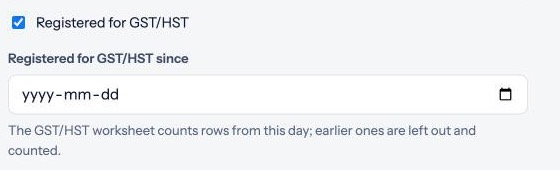
Until the box is ticked there is no worksheet. The card on Reports says so and links to Business settings.
🗂 2. Set a default for each category
Most rows of one kind are treated the same way: every software subscription carries Canadian GST, every payment from a US client is an export. Decide that once per category. In Categories, choose Default GST/HST treatment when you add or edit a category (the choice No GST/HST default leaves it open). The default applies to every row that has no decision of its own. Changing it changes every period that uses it, past ones included.
✍️ 3. Decide the rows
Open a business row with Review this row. For a registered business, income and expense rows have a GST/HST block. Personal rows, transfers and hidden rows are not part of the worksheet. If the category has a default, the block says so (Default from the category). Choose a Treatment:
- Expenses: GST/HST paid (Canadian tax is on the receipt), Import (GST at customs), No GST/HST (for example a foreign supplier that charged none) or Exempt.
- Income: Taxable (GST/HST collected), Zero-rated, Export or Exempt.
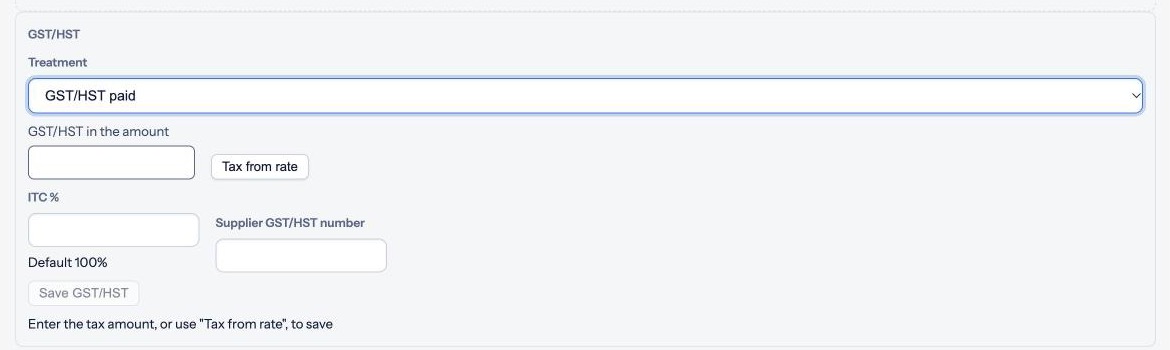
A card amount or a deposit includes any tax in it. For GST/HST paid, Import and Taxable, enter GST/HST in the amount, or press Tax from rate to have SoloBook work out the tax included in the amount at your province’s rate. On an expense with tax, also give the ITC % and, if you have it, the Supplier GST/HST number. The ITC % is what you type on the row; otherwise the category’s business-use share when it has one (Category: 60%), otherwise 100% (Default 100%). Press Save GST/HST. The button stays grey, with a hint, until the row is complete.
Once a decision is saved, Apply to similar rows copies it to every undecided row of the same business, direction and description. A tax worked out from the rate is worked out again for each row, and a tax you typed is not copied. SoloBook asks before it copies and says how many rows it updated.
The owner and the accountant can decide rows. A viewer can only read.
📊 4. Read the worksheet
On Reports, below the category-by-month table, the GST/HST card shows one period. Pick Year, Quarter or Month.
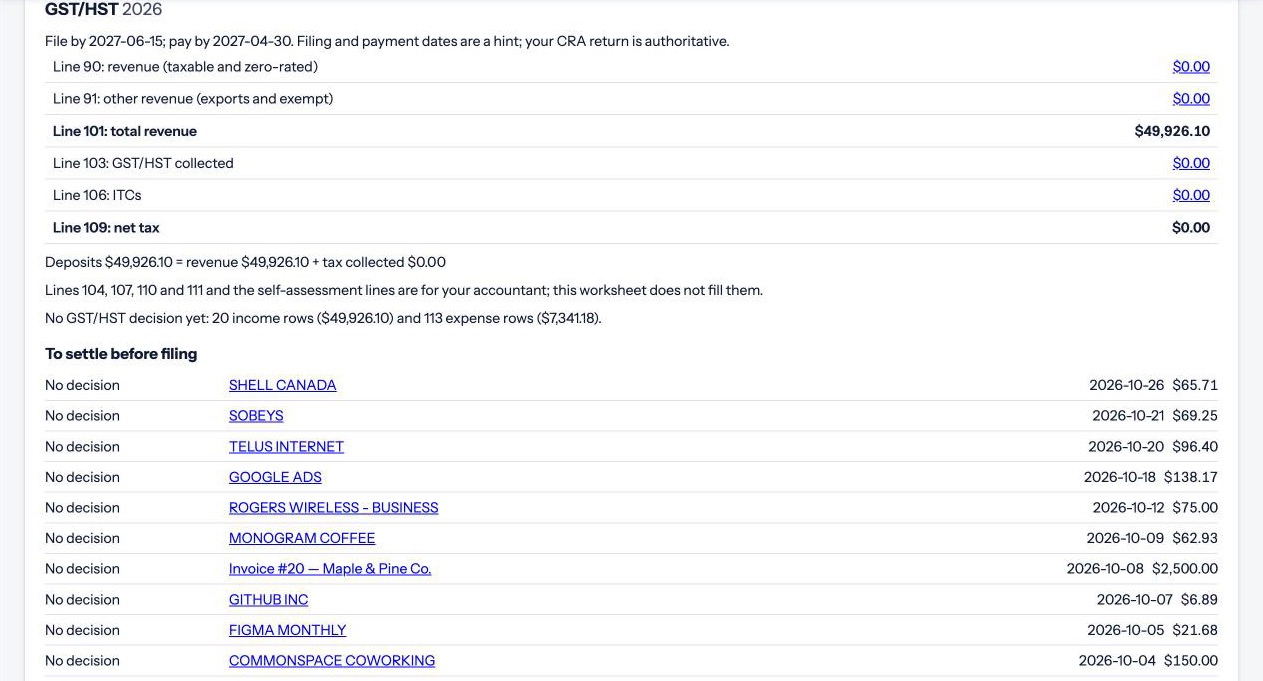
- The table lists the lines of the return: Line 90 (taxable and zero-rated revenue), Line 91 (exports and exempt), Line 101 (total revenue), Line 103 (GST/HST collected), Line 106 (ITCs) and Line 109 (net tax). Revenue on a taxable row counts without the tax in it. Lines 101 and 109 are totals. The other amounts are links: they open the rows behind them in Transactions, with a filter GST/HST line 90 and the period already set.
- Under the table, Deposits = revenue + tax collected ties the worksheet to the income you see on the Dashboard, which is what reached your accounts. A note says that lines 104, 107, 110, 111 and the self-assessment lines are for your accountant and are not filled in.
- File by … ; pay by … is a hint, not a deadline you can rely on. Your CRA return is authoritative.
- No GST/HST decision yet counts the income and expense rows that are not decided. They are counted anyway, never quietly treated as “no tax”.
- To settle before filing lists what is missing: No decision, Tax amount missing, Supplier number missing and Document missing. Press a description to open the row. The more a purchase costs, the more evidence the CRA expects you to keep (the tax amount and the supplier’s number, then the receipt itself), and SoloBook lists what is missing by those tiers. The list can be long: Showing … of … tells you when it is cut.
- Rows with no Canadian-dollar amount yet add 0, and the worksheet says how many there are. Rows before your registration date are left out.
The worksheet is worked out when you open it, from your books. If you change a default or a decision, the periods that use it change with it.
🙅 What it does not do
- It does not file the return, and it does not decide what you may claim (meals, a vehicle, a home office, capital purchases). That is for your accountant and the CRA.
- It does not choose a method for you. For now it shows the regular method only.
- It does not read the tax you type on an invoice. Treatment comes from categories and rows.
- The year bundle for your accountant does not include a GST/HST sheet yet. See Reports.
More: What SoloBook does not do and the Glossary.